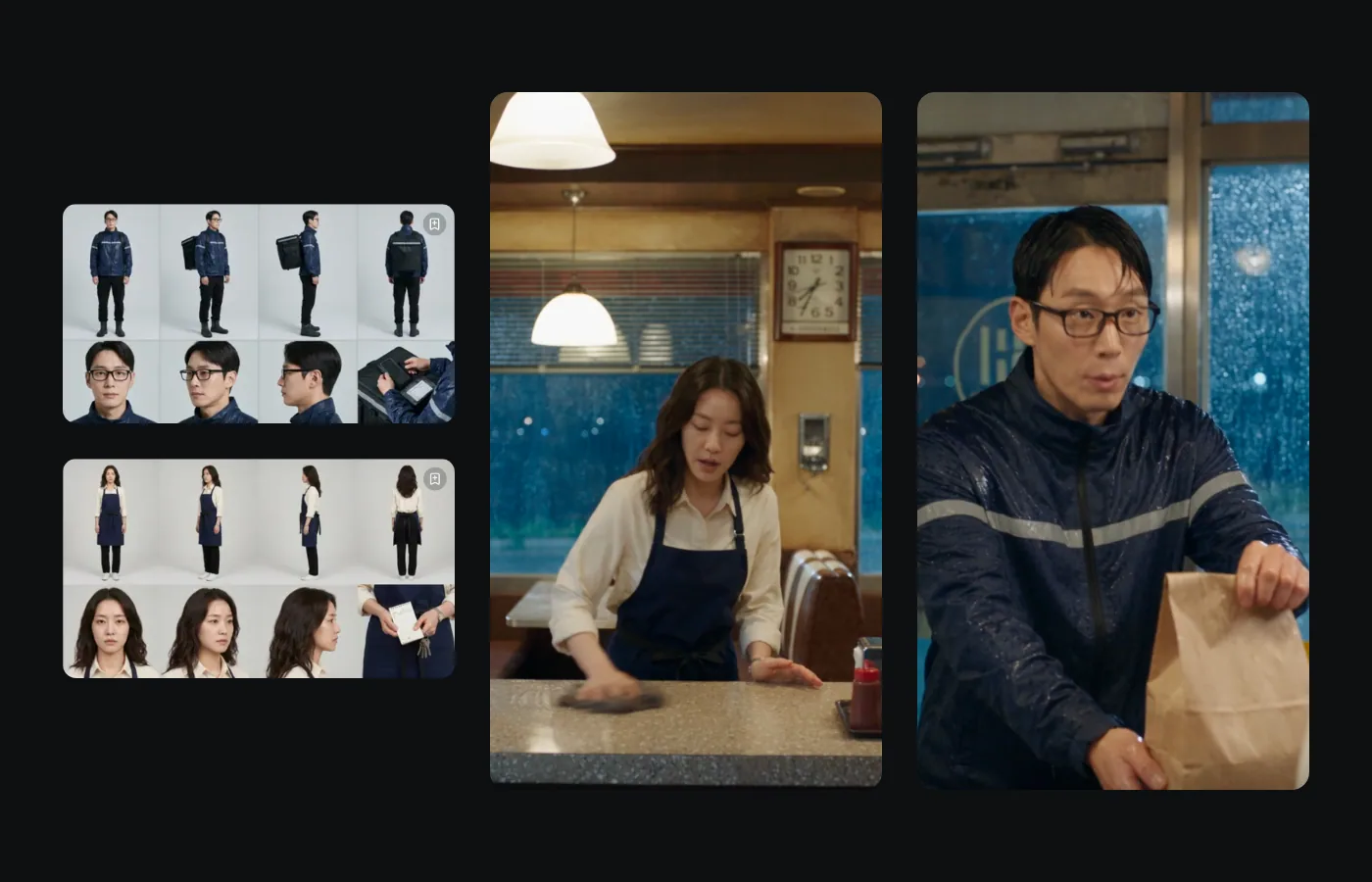
Check It as a Draft First, Then Make It in 1080p
· By 코드크레용 팀
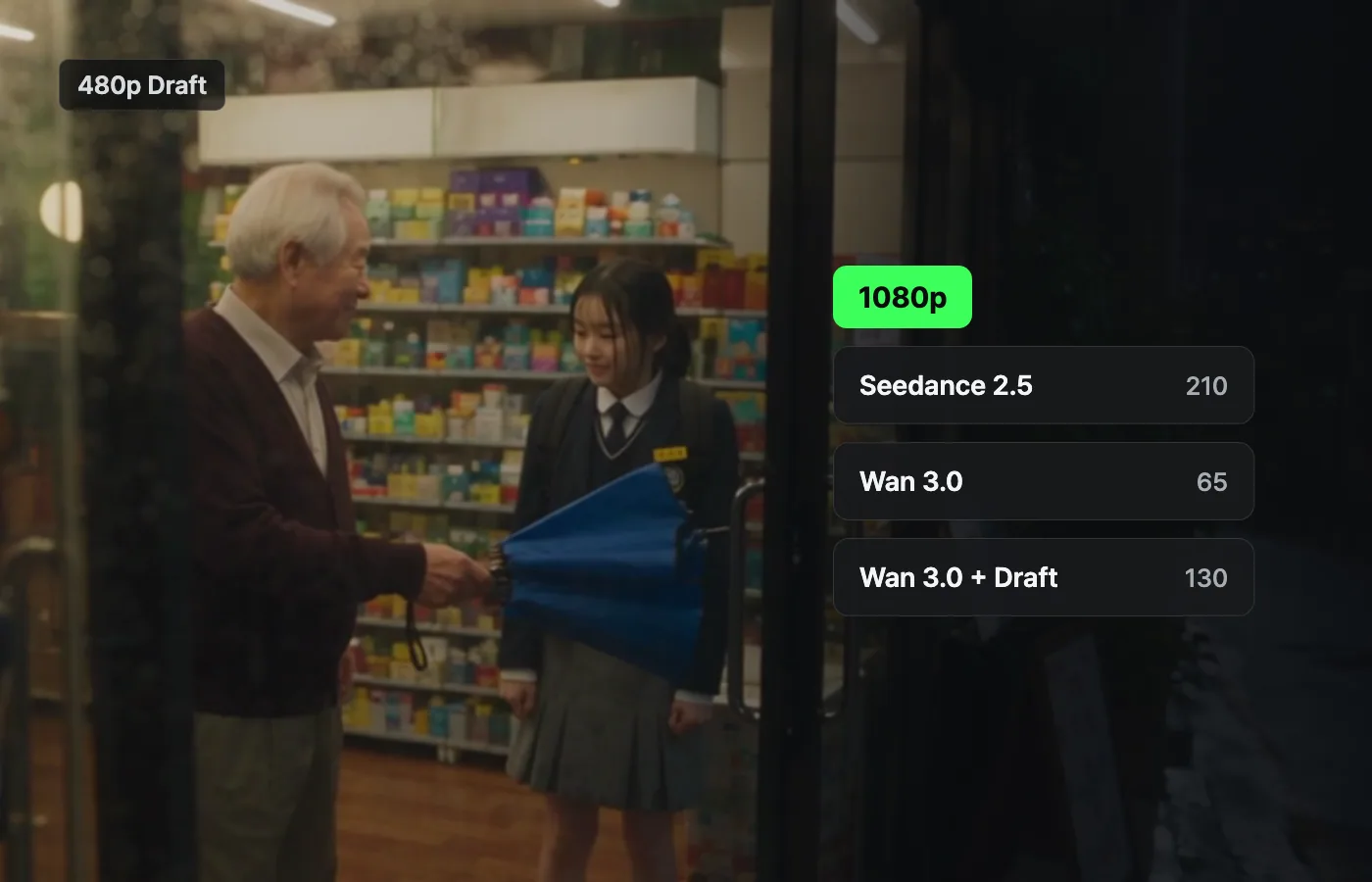
The most frustrating moment in video generation is paying for a high-quality render and then finding the framing or the motion is off. Shortime Studio lets you split that risk in two. Check the scene quickly and cheaply as a 480p Draft first, then make only the take you like in 1080p.
In this post we follow one scene, an umbrella shop at the end of an alley on a rainy night, from start to finish. All credit amounts are for a 5-second video.
Start with a Draft model
On your project’s Production page, open the Video tab and write your prompt. Then pick Seedance 2.5 Draft from the model list (look for the Draft tag). The resolution is set to 480p, and the credits on the Generate button drop noticeably. This scene cost 40 credits for 5 seconds.
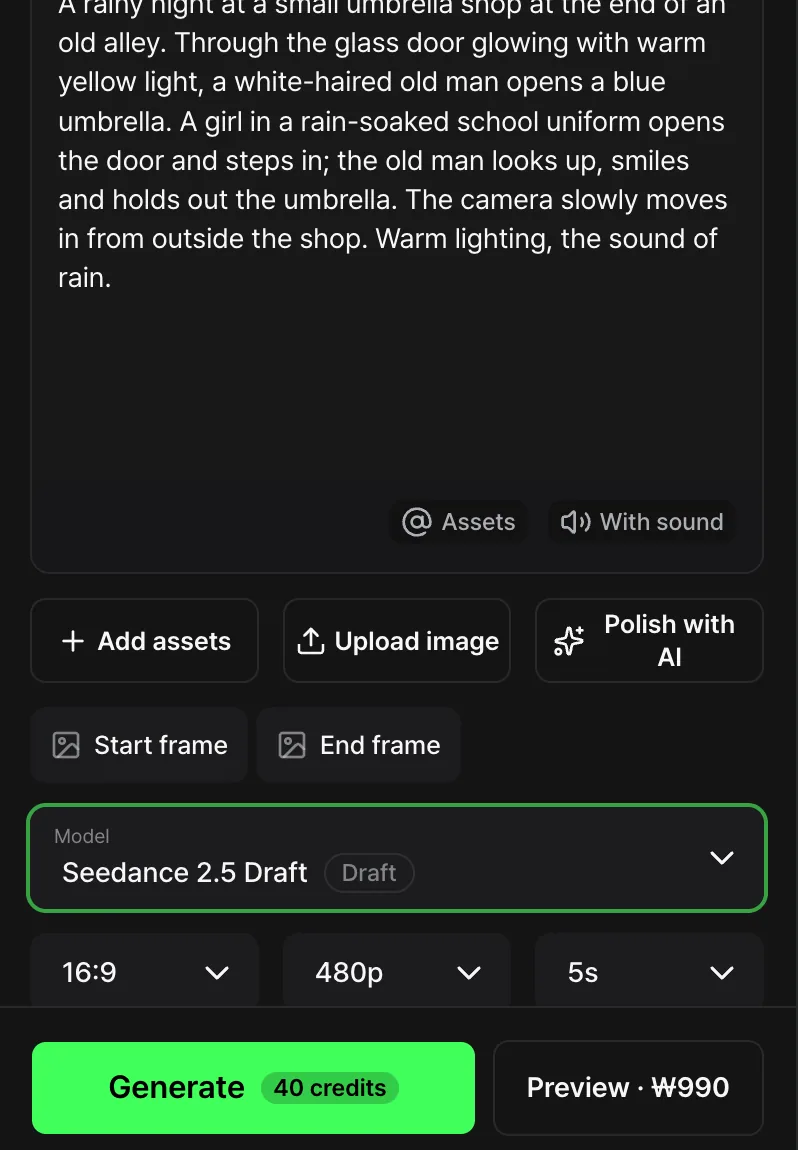
The draft is where you check whether the scene moves the way you imagined: where each character looks, how the camera moves in, who enters and when. If it’s not right, rewrite the prompt and try again. It won’t cost you much.
Choose how to make it in 1080p
When the draft is ready, a green Make in 1080p button appears above the video. It only shows up on videos made with a Draft model. Click it and you get three options, each with its estimated credits, so you know the cost before you commit.
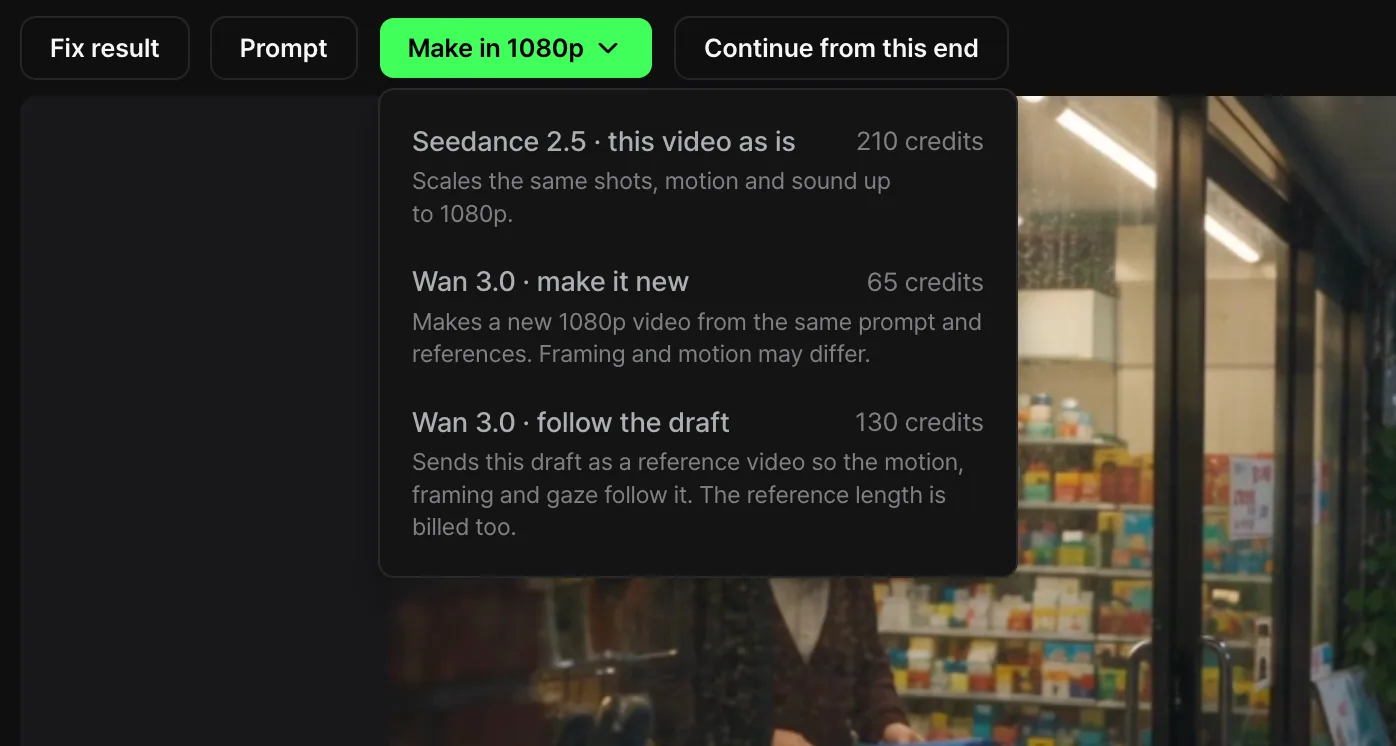
| Option | What it does | For 5 seconds |
|---|---|---|
| Seedance 2.5 · this video as is | Reuses the draft’s settings to make the same scene in 1080p | 210 credits |
| Wan 3.0 · make it new | Makes a new 1080p video from the same prompt and references | 65 credits |
| Wan 3.0 · follow the draft | Sends the draft as a reference video so the motion, framing and gaze follow it | 130 credits |
Pick based on how closely the result needs to match your draft.
- To keep it exactly, use Seedance 2.5. It gives the result most consistent with the draft. This option only works within 7 days of making the draft.
- When the mood is all that matters, use Wan 3.0 make it new. It’s the cheapest, but the framing and motion may change.
- To keep the direction but spend less, use Wan 3.0 follow the draft. The reference length is billed too, so it costs about twice “make it new”, but still less than Seedance.
Keep it as is with Seedance 2.5
Choose Seedance 2.5 · this video as is and a confirmation dialog appears. It shows how many credits will be used and until when you can still make it. Nothing starts until you click Make.
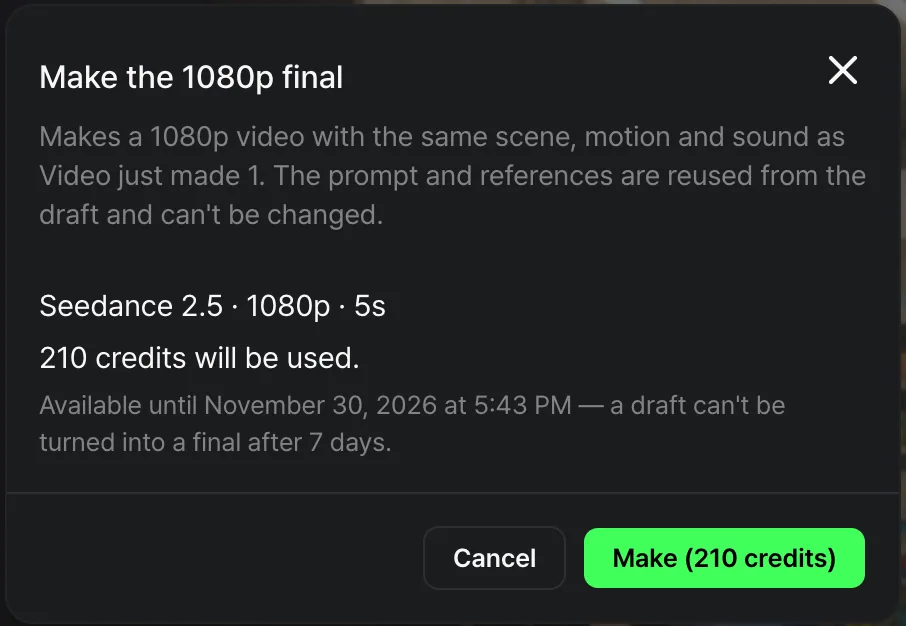
The prompt and references come straight from the draft and can’t be changed here. If you want to change them, make a new draft.
Follow the draft with Wan 3.0
The two Wan 3.0 options don’t start right away. They set the model to Wan 3.0 and the resolution to 1080p, and you click Generate yourself. If you chose follow the draft, a Reference video chip appears below the input and the credits on Generate update to match.
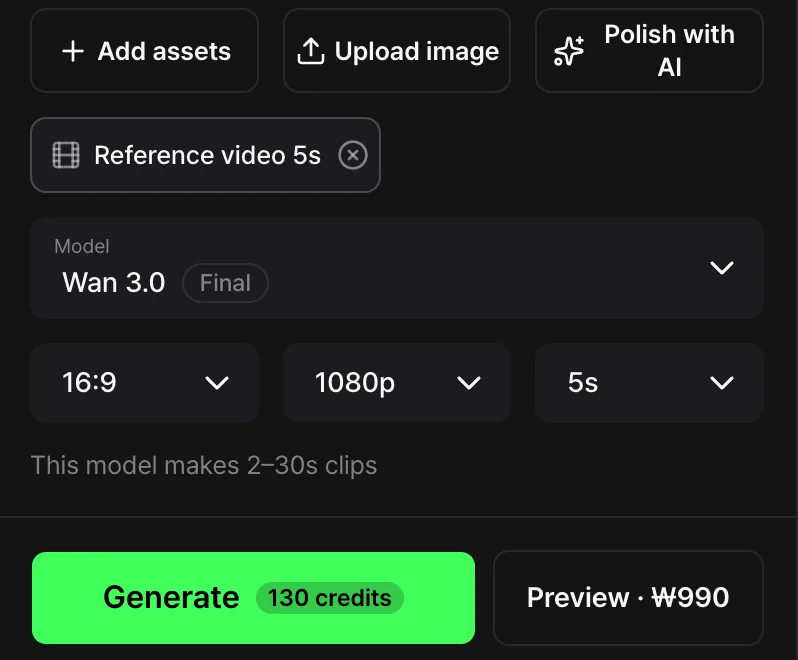
Follow the draft isn’t an upscale of the draft. It’s a re-render that follows it, so the cuts, framing and gaze track the draft while small details can differ. Unlike Seedance 2.5, both Wan 3.0 options let you edit the prompt before you generate.
For step-by-step details, see the scene production guide.
Wrapping up
Look at a draft first and make only the takes you like in 1080p, and the same credits stretch across many more attempts. Use Seedance 2.5 when you need the same scene, and Wan 3.0 follow the draft when you want to keep the direction for less.
Make your first draft in Shortime Studio.
 Back to Blog