Learn from the Gallery, Post Your Video, Earn Bonus Credits
· By 코드크레용 팀
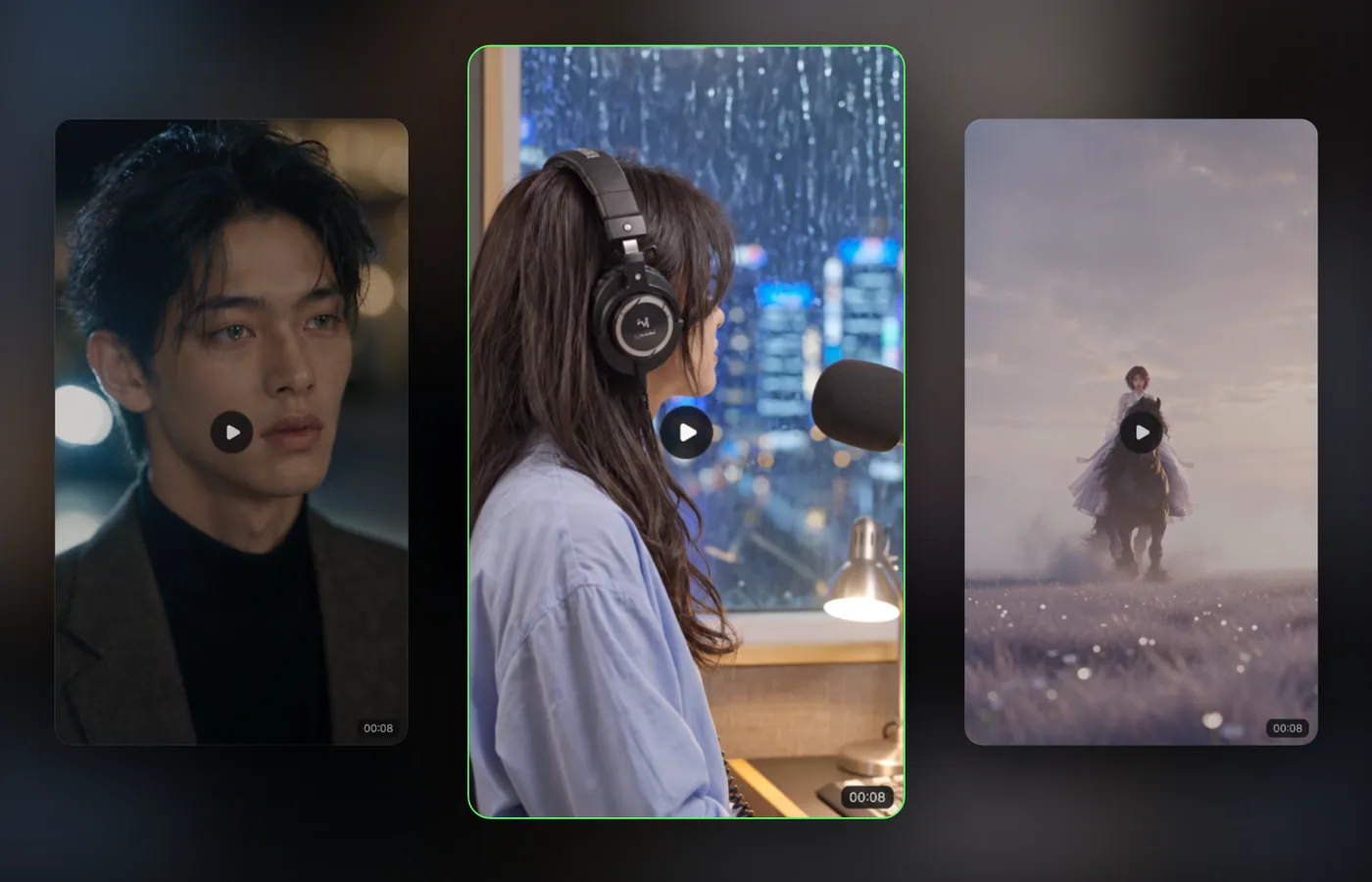
The hardest part of writing your first video prompt is knowing what to put in it, and how much. The gallery in Shortime Studio answers that with real examples: every video there can show the prompt that produced it.
This post walks through the full loop. You find a video you like, borrow ideas from its prompt, make your own, then post it back to the gallery and earn bonus credits.
Find a video you like
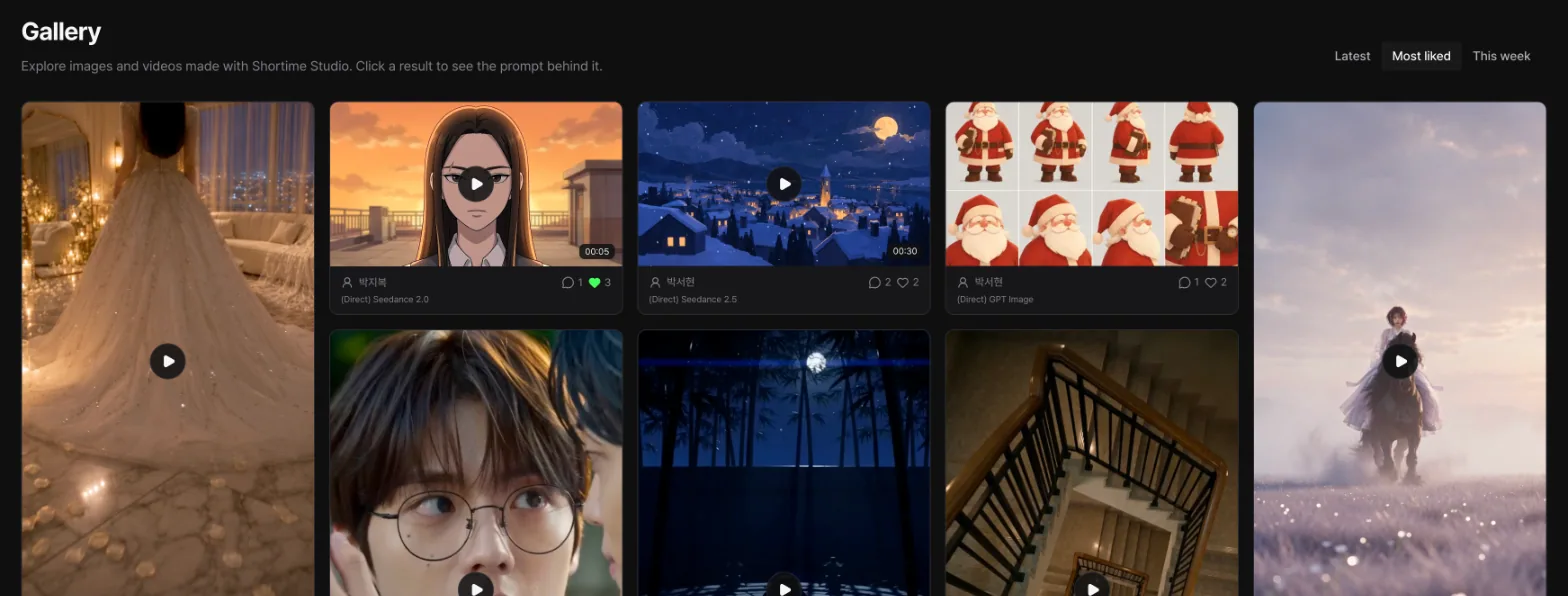
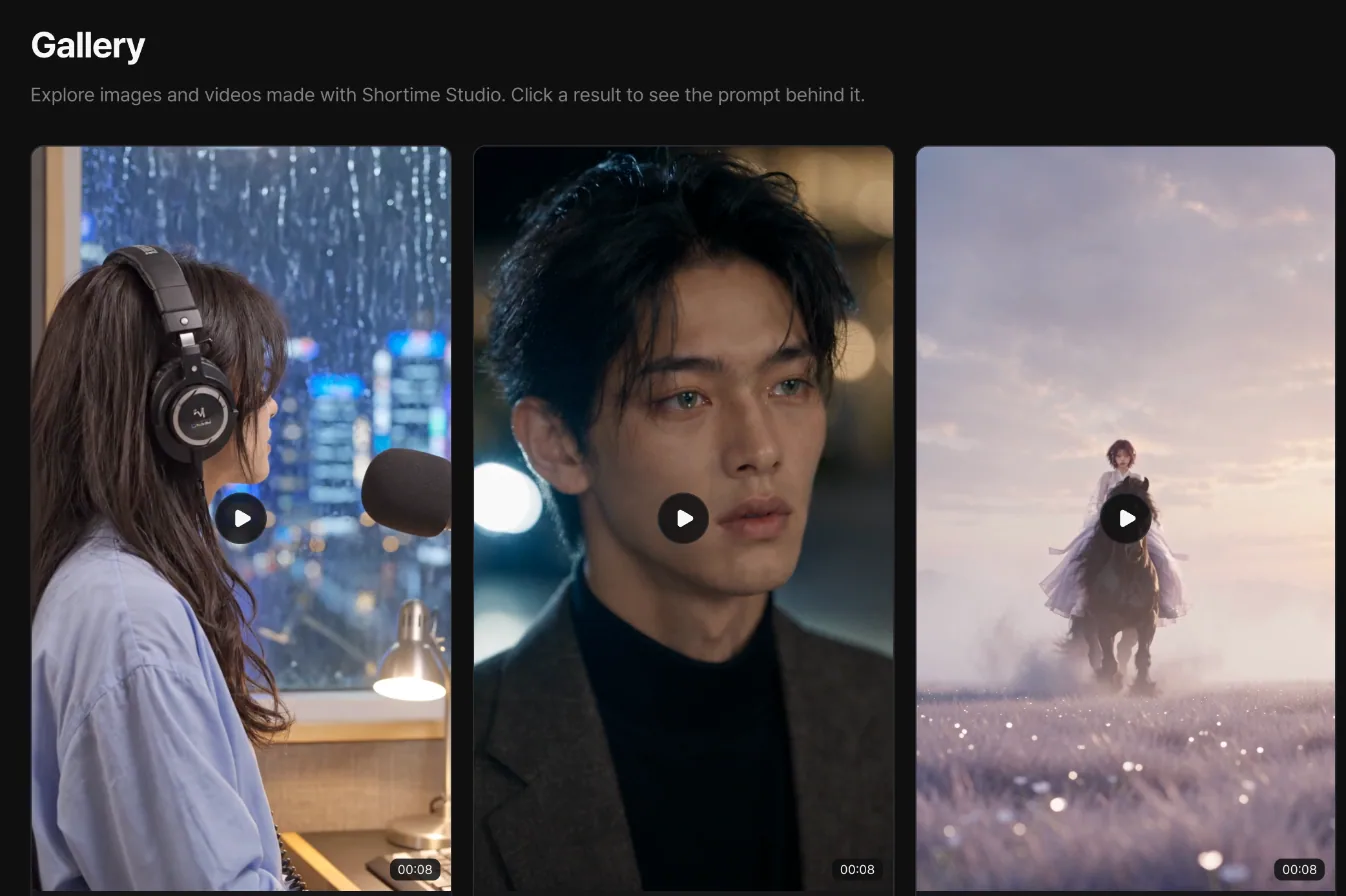
Click Gallery in the top menu. Images and videos from many creators appear on one wall. Video cards show their length, and hovering plays a silent preview. Use Latest, Most liked, and This week at the top right to change the order.
Open the prompt and copy it
Click a result to open it. Scroll down a little and you will see Note from the creator and Prompt. The prompt appears when the creator chose to share it, and Copy puts the whole thing on your clipboard.
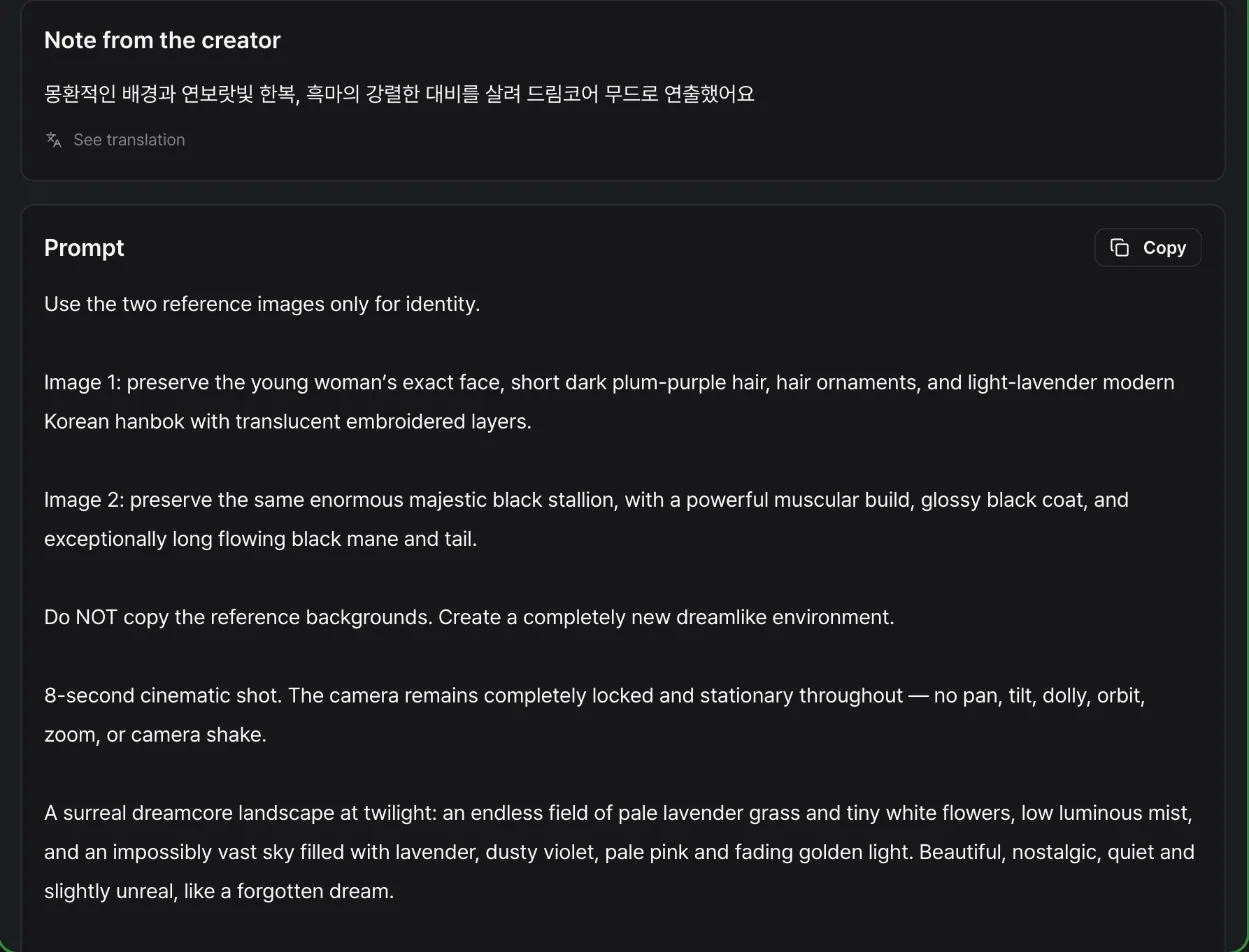
Rather than pasting a prompt as is, read how it is built. Three things stand out in this example:
- It fixes the length and the camera first: eight seconds, camera locked.
- It describes the character’s look in detail, down to hair, clothing, and accessories.
- It spells out the setting in terms of color, light, and mood.
If you see an @name in a prompt, that is a character or location the creator registered in their own project. It will not work in yours, so swap in your own asset name or describe it in words.
Make your own video
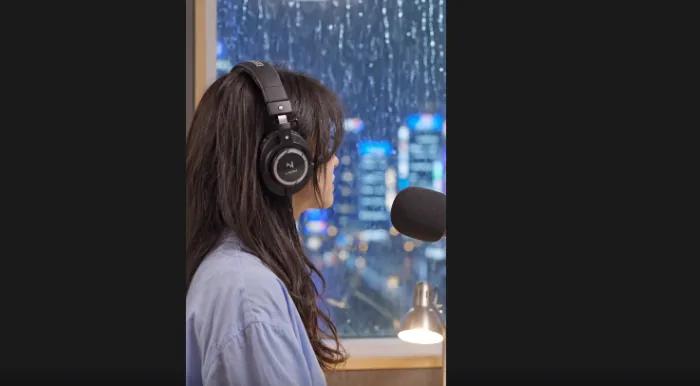
Now go to your project. Click Production in the left menu, choose the video tab, and write your scene in the prompt box. For this post we borrowed only the structure, a locked camera plus a mood description, and wrote a late-night radio booth scene: a DJ in headphones at the microphone, rain on the window, warm lamp light against blue neon outside.
Pick the aspect ratio and length, start the generation, and the result appears on the right. You can keep working on other things while it runs.
Post it to the gallery
Finished videos collect in your project’s archive. Open the ⋯ menu on the video you want to share and choose the option to post it to the gallery.
The first time you post, you pick the name the community will see on your posts and comments. Then you can add a short note about how you made it, up to 300 characters, or leave it empty. Sharing the prompt is on by default. Turn it off and viewers see only the video and your note.
Your post does not go public right away. A moderator checks it first, then it goes up in the gallery.
Get bonus credits when it is approved
When your video is approved, a notification tells you, and 50 bonus credits arrive with it. The notification states the amount.
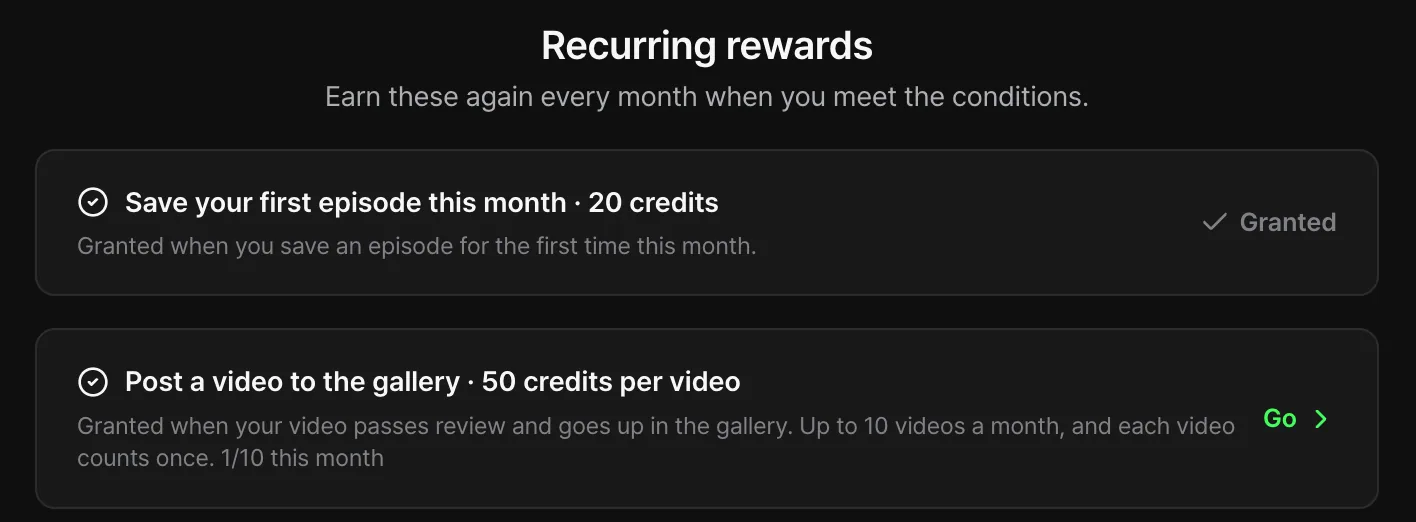
To see how many you have earned this month, open Bonus credits from your account menu. Under Recurring rewards, the Post a video to the gallery item shows your count, such as “1/10 this month”.
Four things to know:
- The bonus is for videos. You can post images to the gallery, but they do not earn it.
- You can earn it for up to 10 videos a month.
- Each video counts once, even if you take it down and post it again.
- Bonus credits can be used for 90 days after they are granted.
Wrapping up
The gallery is a place to browse and a place to learn. Read the prompt behind a video you admire, turn it into your own scene, and post the result. The next person gets to learn from yours, and you pick up bonus credits along the way.
Explore the gallery and post your first video in Shortime Studio.
 Back to Blog